
October 16th, 2019
Hey there everybody!

I may be a lot less active in these next few months [and with reason, mind you], but I don’t want you to think that I’ve forgotten about you!
 May I present to you… *drum roll please* Zotero.
If you already know about it, I will say: hey, you’re amazing! If you don’t know about it, let me show you!
What is this? How do I use it?
Zotero is basically a free website or software which you can use in order to make it easier for you to use references while essay writing.
The software itself takes up very little of your computer space. 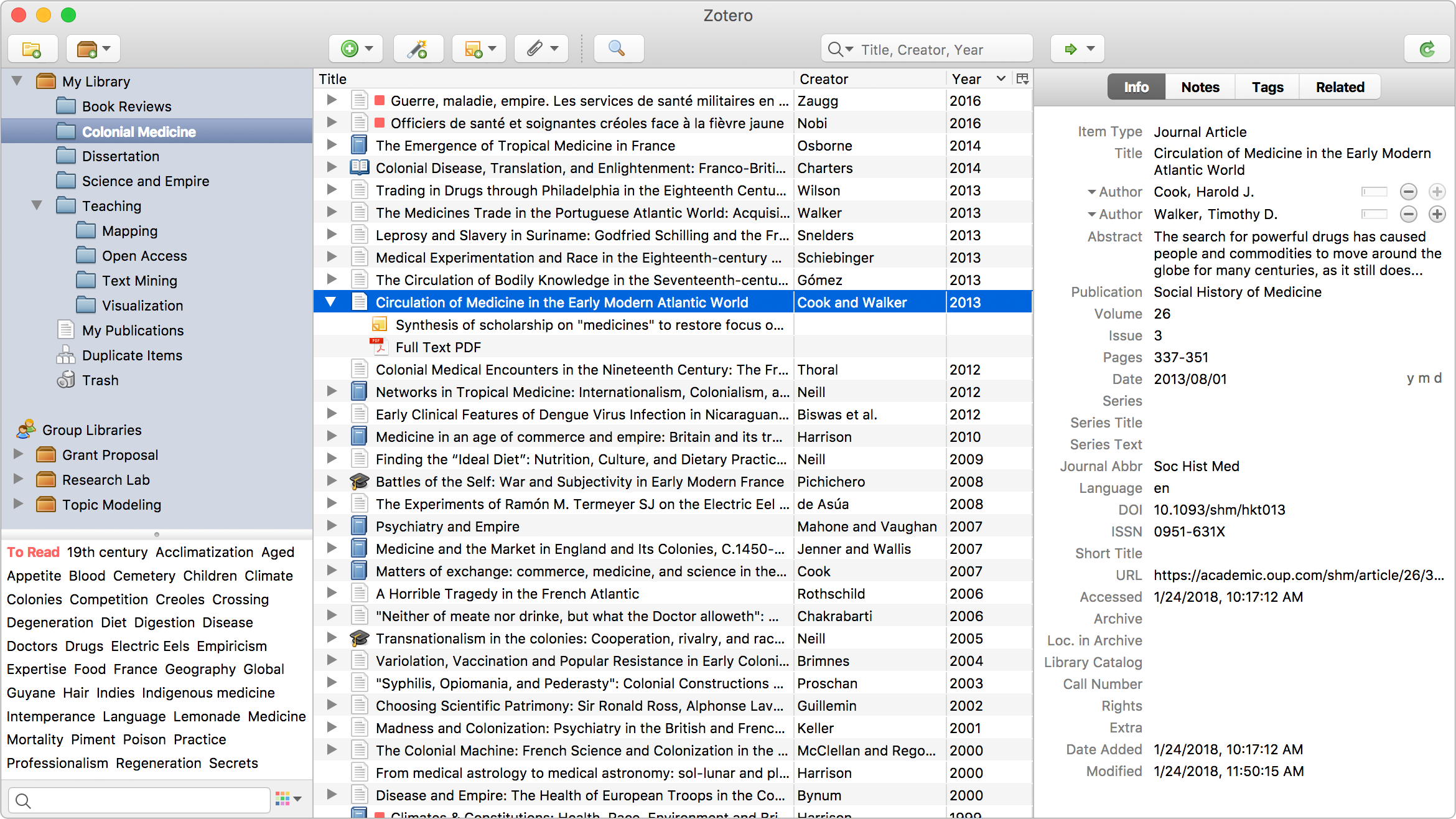 You can create your own files and your own tags and notes for each of these. As you can see on these pictures from their website. You create folders for your courses or for the different subjects that you would use Zotero for.
My personal recommendation is to make folders of the courses that you have. I would also add the abstract, tags and notes, in order to differentiate between each of your entries.
My other recommendation is, at the beginning of each semester, as soon as you receive your course syllabus, to automatically add all of the recommended readings as well as the readings for the whole course. That way, you don’t struggle at the last minute to know which is where, what information is missing, etc.

When you are writing your essay – whether it is on Microsoft Word or on Google Document, you will be able to automatically click on your “zotero” icon and you can choose the cited works that you need. It will add the cited works according to your chosen style (APA, MLA, Chicago, etc.).
As soon as you add a citation, Zotero will automatically update your bibliography within the document that you are using. It is updated and it is within the style that you choose to write your paper in (APA, MLA, Chicago, etc.).
You can acquire it via this link: https://www.zotero.org/download/.
 You can pair this software with the Zotero Google Chrome Extension. With this extension, whenever you navigate any webpage, or anything via your Google Chome, you can automatically click on the Zotero extension icon, and it will automatically add the webpage onto your library/files.
Of course, this is not at all completely accurate, mind you. I want you to know this, because you will have to fill in some of the information by yourself. But once this is done, it is done, and you do not have to second-guess yourself again.
Advantages
Other than the fact that it syncs your citations automatically with your bibliography which greatly helps when you choose to remove citations or when you add more, for example, what more can I tell you?
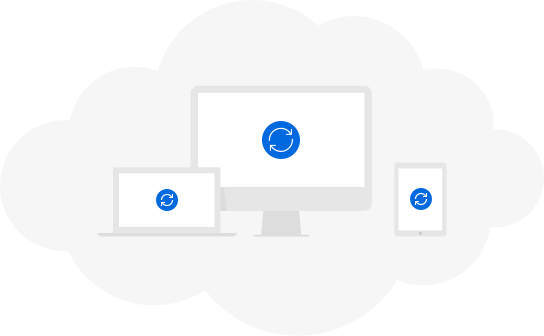 Well, Zotero syncs what you put in your library from you computer in which you use the software to the website. Your account can be updated on every computer or device that you use. If you are on a computer which doesn’t allow downloading and executing new softwares, I feel that having the version of your library on the web browser is also extremely good!
I hope this was somewhat helpful!
If you use something else, feel free to tell me!
So far, this is the one I love the most!
PV
 Tell Me More About TESL